Partnership dominoes
Instructions for playing. It takes ten minutes to read; if you are in a hurry, starting and playing a tile are enough to play.
From any screen of the game, the ? button at the top right brings you to the part of this manual about what you are looking at.
1. The game in two minutes
It is played in pairs: you (at the bottom, South) with the player opposite you (North), against the players at the sides (East and West). There are 28 tiles and each player gets 7, with no boneyard: if you can't play, you pass.
- The first hand of the game is opened by whoever has the 6/6, and they must play it. After that, the lead moves to the next player, on the right, who can lead with any tile.
- Turns go to the right: you, East, North and West.
- The hand ends when someone plays their last tile (domino) or when nobody can play (blocked game). In a blocked game, the pair with the fewest points between their two hands wins.
- The winning pair scores the points of all the tiles left in the four hands. If a blocked game ends in a tie, nothing is scored and the hand is replayed.
- The game is won by the first pair to reach the agreed points (100 unless changed; see Settings).
2. Starting a game
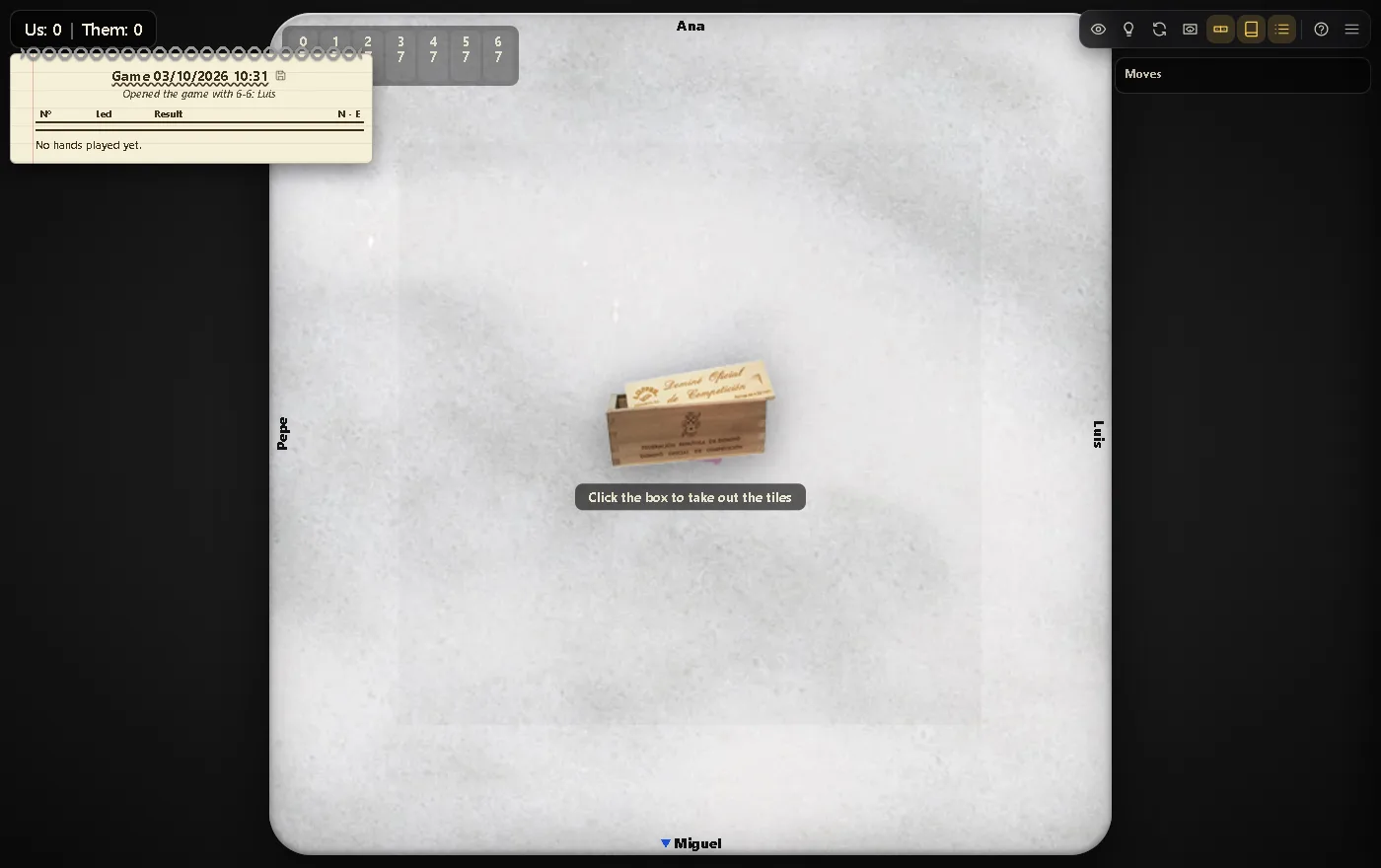
The game never starts on its own. In the middle of the table there is a closed box of dominoes: click it and the 28 tiles come out, face up and in order.
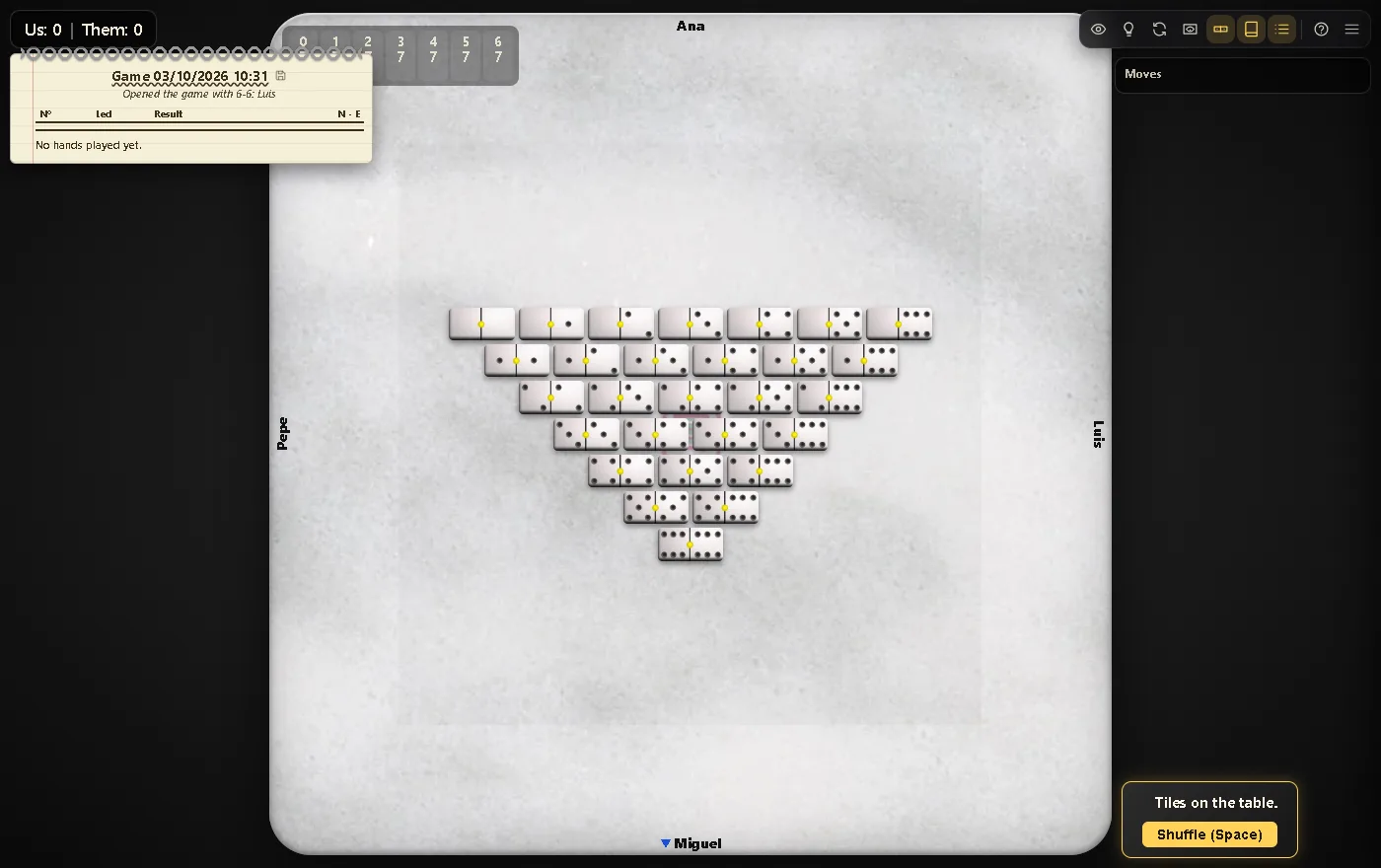
Then press Shuffle: the tiles are mixed and dealt, seven each. At the end of every hand they are shuffled again for the next one.
To start from scratch at any time: Menu → New game.
3. Playing a tile
When it is your turn, the tiles you can play have a yellow frame. There are two ways to play:
- Clicking the tile. If it fits on both ends, two circles appear on the table so you can choose where.
- Dragging it until it touches the circle of the end; when you let go it places itself. If you drop it somewhere else, it goes back to your hand: that is how you change your mind.
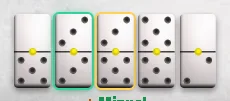
If you have nothing to play, you pass automatically. And if you have only one way to play, the tile is played on its own after a pause (this can be turned off in Settings): taking your time with only one option would make your partner believe you had more.
What each move tells
- Passing on a suit says you have none of that suit. You see it as a red PASS stamp on the hand of whoever passes.
- Whoever plays without thinking (“no choice”) only had one possible tile: they have no other tile of the two suits that were open either.
- When a machine thinks, you will see a question mark moving over its tiles. If it stays still and blinking on a single one, it had nothing to think about.
4. The table
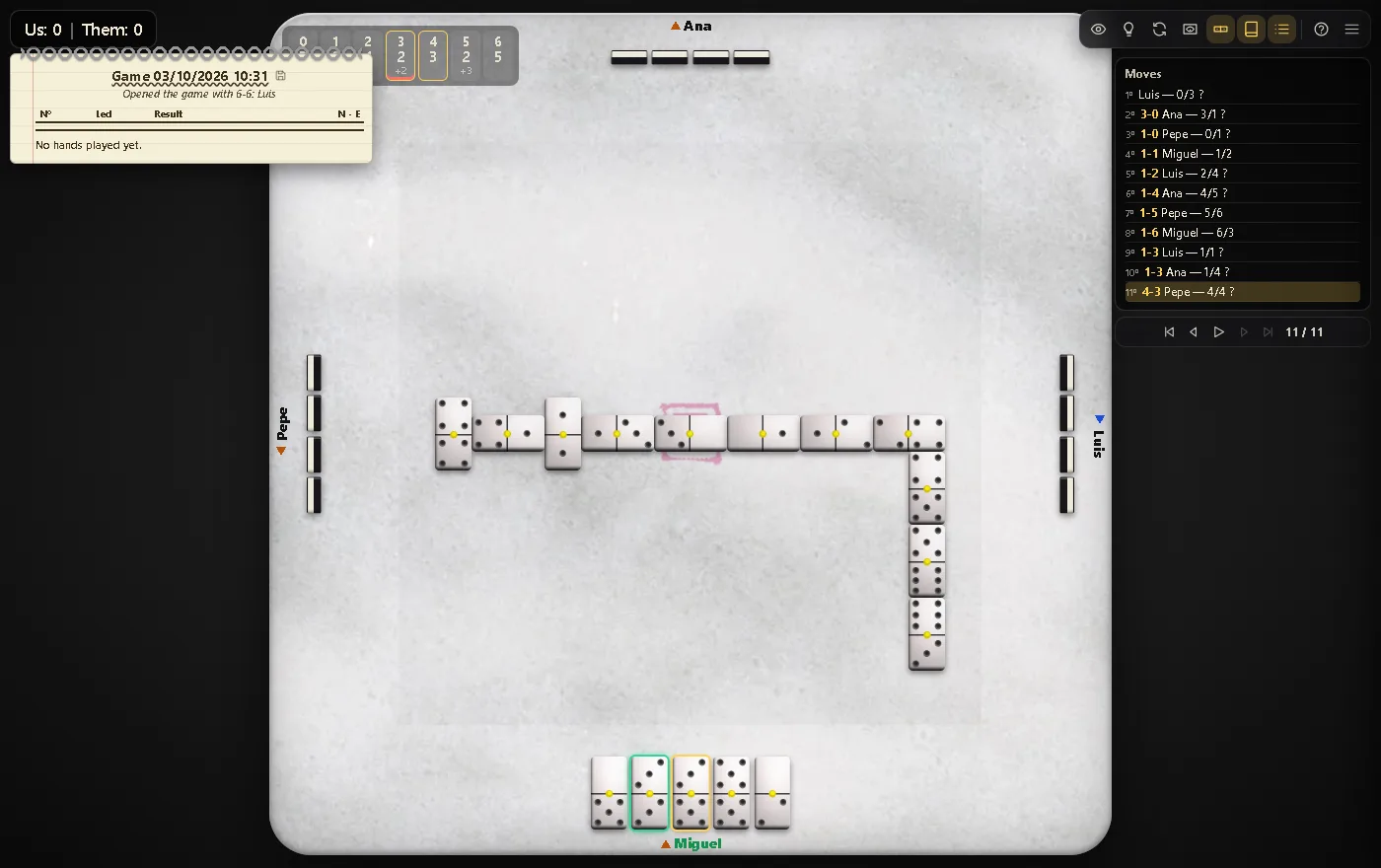
The toolbar

The score and the scorebook
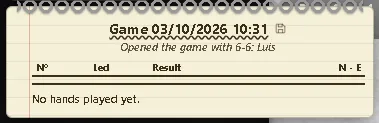
Top left, each pair's points. Below, the scorebook: one line per hand, with who led, how it ended and the running score. Hovering over a hand shows each player's points.
How many of each suit are left
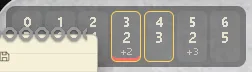
The seven figures at the top: the big one is how many tiles of that suit are in other hands, which is what matters. The two suits open on the table have a golden border. Clicking one shows which tiles are missing.
The list of moves
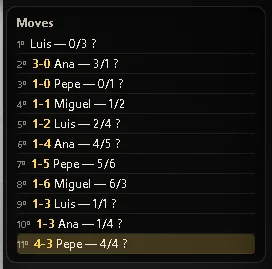
On the right, everything that has happened in the hand. Each line shows the open ends, who played and the tile, written first with the number that matches and then with the new end. A ? after it means they could choose. Hovering over a line tells the whole move.
5. The aids
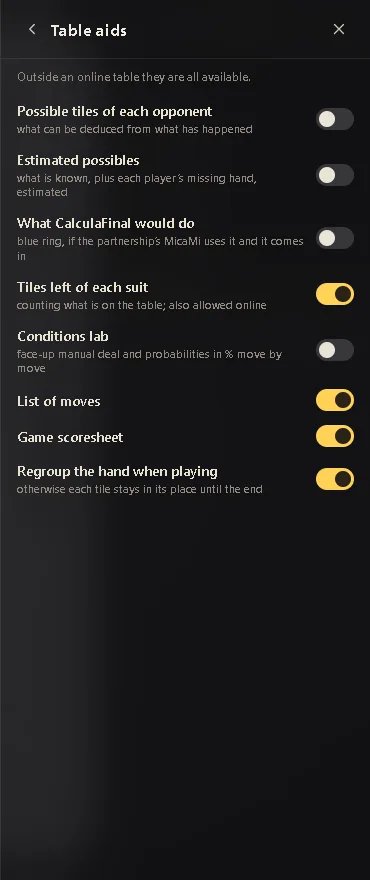
They are for learning to deduce. Turn them on and off with the toolbar icons or in Menu → Table aids. They are not available when playing online (it would be cheating), except the suit count, which is just counting what is in sight.
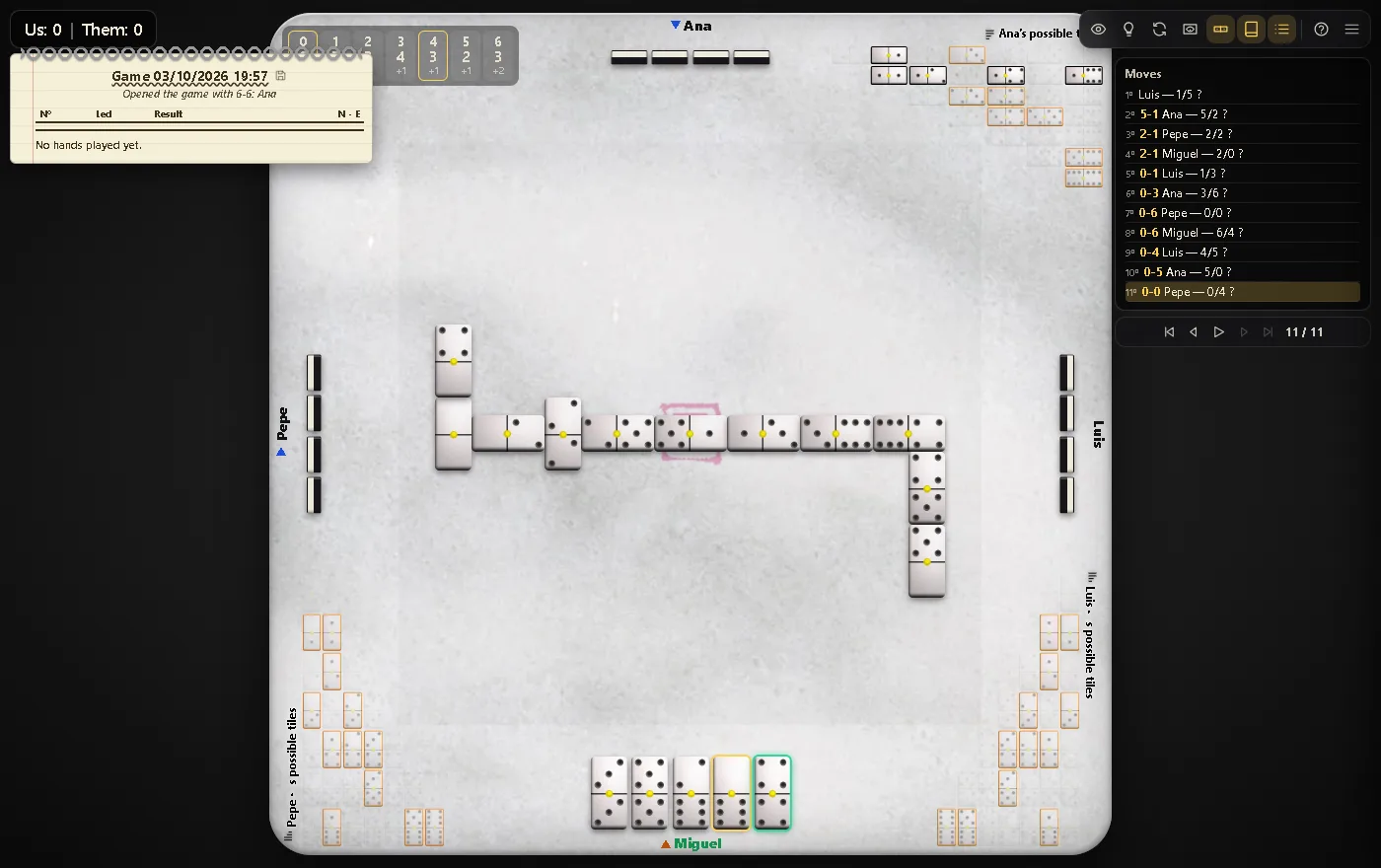
Possible tiles
In three corners of the table the 28 tiles appear, once for each opponent:
| How it looks | What it means |
|---|---|
| Dimmed | that opponent is known not to have it |
| Normal | they might have it |
| More or less transparent | how likely they are to have it: a tile at 30% shows at 30% |
| Green frame | they are known to have it |
| Yellow, orange, red | a guess, from more to less reliable |
Green is certain: it comes from counting and from what the table has seen. The icon next to each name explains why each thing was deduced.
The rings on your tiles
| Ring | What it means |
|---|---|
| Yellow | you can play it |
| Green | the one your pair's MicaMi advises |
| Blue | the one CalculaFinal would choose; it calculates the end of the hand the way a person would: when it’s known where the other tiles are |
The rings only advise: you always play. Hovering over a tile tells you who advises it and, for CalculaFinal's, how many points it expects and how likely it is to win the hand.
The blue ring is switched on in Table aids → What CalculaFinal would do, and only shows if your partnership’s MicaMi uses it. The MicaMi decides whether it calculates and with what: with certain tiles, only with what the table shows; with estimates, also with what the partnership agreements say, which may not be true. The factory MicaMi and Level 3 use it with estimates; levels 1 and 2 and the AI don’t.
The coloured dot in the list of moves
Moves related to CalculaFinal have a dot after them: filled if it decided the move, hollow if it only matches what it would have played. Its colour says how likely it was to win the hand with that move:
| Green | certain |
| Yellow | 75% or more |
| Orange | 50% or more |
| Red | less than 50% |
After the dot come the points it calculated, always from your side: + if your pair scores, − if they score.
6. Reviewing a hand
Below the list of moves there are controls to move through the hand:
| ⏮ ◀ ▶ ⏭ | go move by move, to the start or to the end |
| ▶ (play) | replay it as it happened, with its sounds |
| ↻ | keep playing from that point |
You can also click a line of the list to go to that moment. If you play while on an earlier move, what came after is discarded and a new line starts. You can't review when playing online.
With a saved hand or game you can rehearse: go back and play something else to see what would have happened. When it ends, the provisional result of that line appears on the left; it isn't recorded anywhere, and Save this hand keeps it separately, with its comment.
7. Playing online
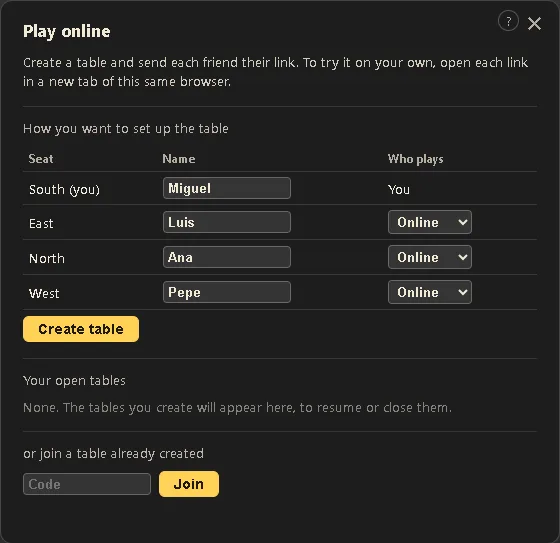
Four people, each at home. One of them is the host: sets up the table and invites the others. Seats not taken by a person are played by the machine.
If you are the host
- Type the names in Menu → Players (they will already appear at the table).
- Menu → Play online. For each seat choose Online (a person) or Machine, and press Create table.
- Press Copy link on each seat and send it to whoever will play it (by WhatsApp, email…). They can also join with the table's code, made of four letters and numbers.
- When everybody is in, Go to the table and start as usual: box and shuffle.
If you are invited
Open the link you were sent and you are already in your seat. Or, in Menu → Play online, type the table code and choose a seat. The names, who plays each seat and the rules (how many points to win, by tens or not) are set by the host; you have your own menu with the look, the sound and saving.
Talking at the table
- Chat: on the right, below the list of moves. The microphone button types what you say and leaves it written so you can check it before sending (Chrome and Edge).
- Translation: everyone chooses their language and reads the chat translated (desktop Chrome; the first time it asks for a click to download the language). The game's own notices arrive in your language.
- Voice: if the host turns it on, you talk out loud. The browser will ask for permission to use the microphone.
Nobody to play with? Menu → WhatsApp community takes you to the Dominó Micarán players' group: news, games and people to set up a table with.
Leaving and coming back
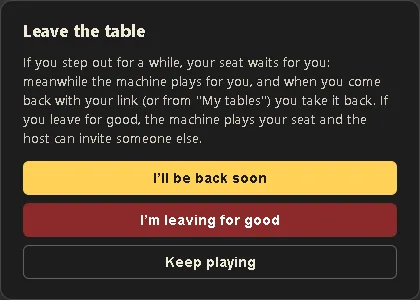
- I’ll be back soon: while you are away, the machine plays for you; when you come back with your link (or from Your open tables) you get your seat back.
- I’m leaving for good: your seat goes to the machine and the host can invite someone else.
- The host can leave it for another day: the game is paused and continues when everyone is back.
8. Settings
Everything is in the menu (the three lines at the top right). At the top of the menu you can also change the language of the game.
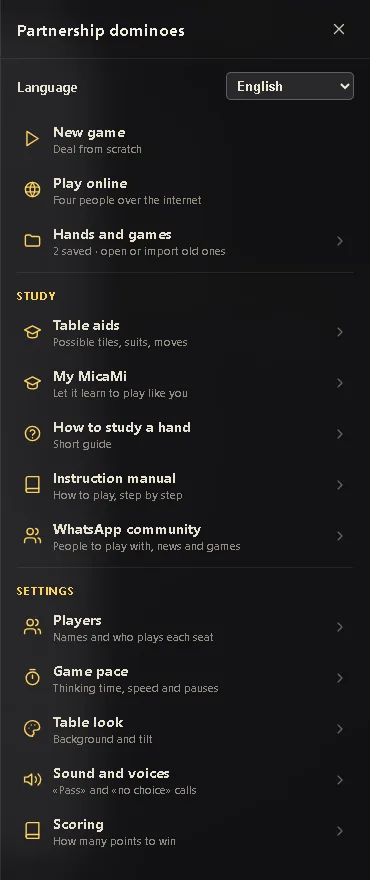
| Page | What's there |
|---|---|
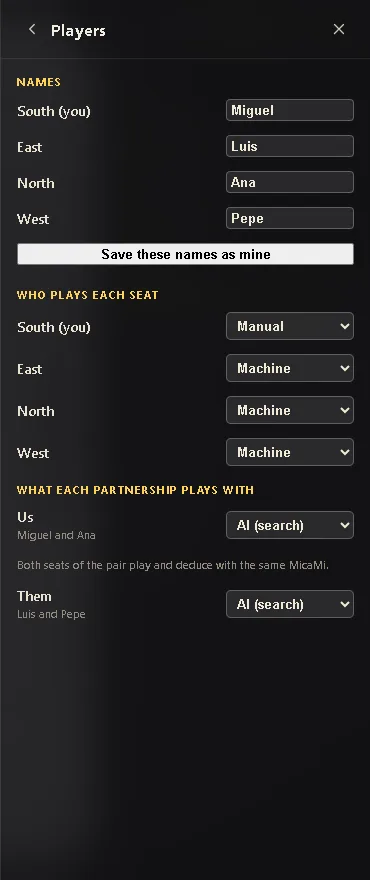
| Players | the names; who plays each seat (Manual, you; Machine); and what each pair plays with: levels 1 to 3 for learning, your MicaMi, or the AI, which is the strongest opponent. At first, both partnerships play with the factory MicaMi (“MicaMi de fábrica”). That one can’t be changed: to teach one to play like you, in My MicaMi you make your own, a copy of it or one that starts from scratch, and give it your name. |
| Game pace | how long the machines think, the speed, the pauses and playing your only tile on its own. |
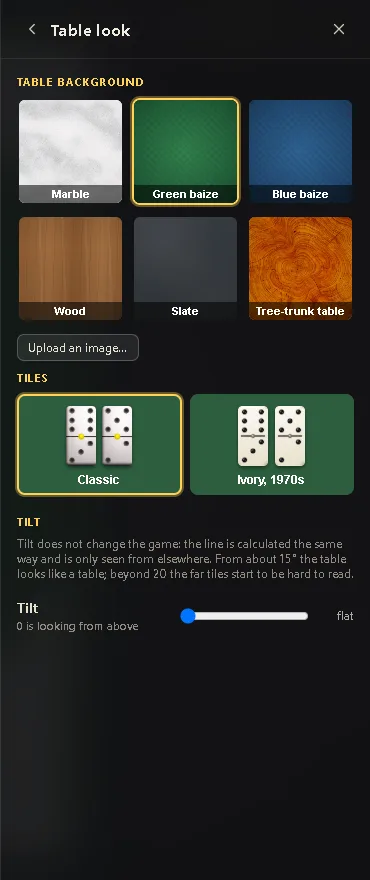
| Table look | the table background and the tilt, as if you were sitting at it. |
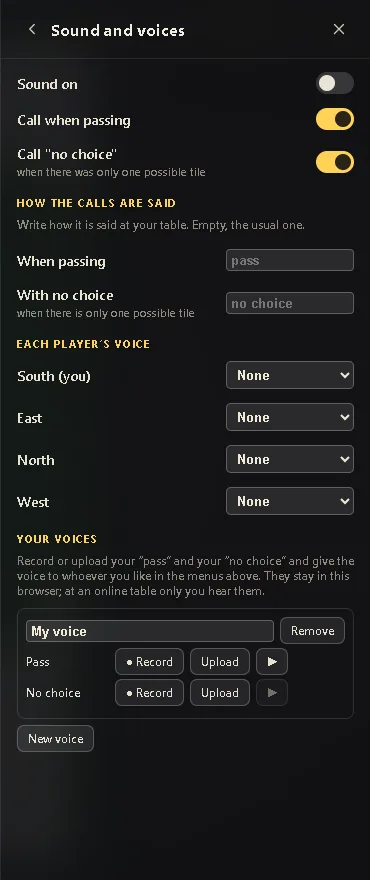
| Sound and voices | the “pass” and “no choice” calls, how they are said at your table, each player's voice and your own voices. |
| Scoring | how many points win and whether scoring is by tens. |
The table background
In Table look you choose the background: marble, green or blue baize, wood, slate or the tree-trunk table. With Upload an image… you can use a photo of your own; it appears next to the others and you remove it with its ×.
Below, under Tiles, you choose the tile set: the classic ones or the ivory, 1970s ones, glossy plastic with a pin in the middle. The ivory tiles stand out better on baize or wood than on marble.
Your voices
In Sound and voices, at the end, New voice creates a voice of your own. Give it a name and, for “Pass” and for “No choice”:
- ● Record: press, say the word, and it stops on its own after three seconds (or press again). The browser will ask for permission to use the microphone.
- Upload: an audio file you already have, a short one.
- ▶: listen to it.
Your voice appears in the Each player's voice menus: give it to whoever you like. If one of the two sounds is missing, the usual one plays.
9. Saving and opening
The game you are playing is remembered on its own: if you close the tab, it carries on where it was when you come back.
- To keep a hand or a game, press the save button in the scorebook (in the title, the game; on each line, that hand). Hollow means it isn't saved; green, that it is. What you save remembers whether it was scored by points or by tens, and counts the same when opened.
- When saving you can write a comment: what makes it interesting, who played… Change it later with its button in the list; in a game, each hand can have its own, shown when it ends.
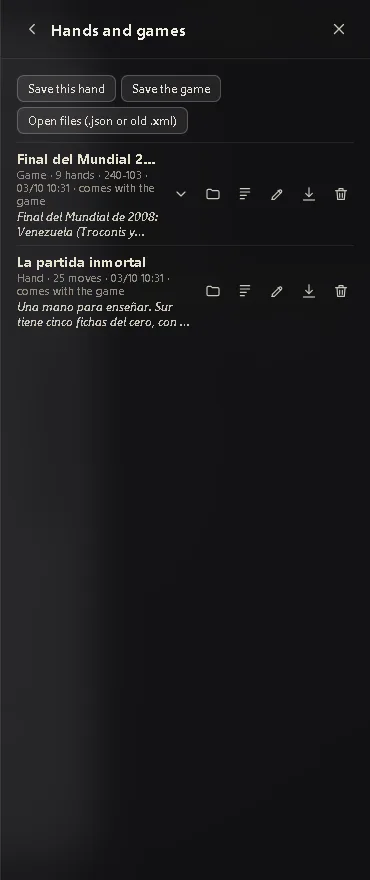
- The game comes with two saved games, commented hand by hand: the 2008 World Championship final and the immortal game. You can view, comment on and delete them like any other; once deleted, they don't come back. In a game, at the end of each hand, Next hand takes you to the next one.
- In Menu → Hands and games you have the list, you can download them to a file (to take them to another computer or send them) and open files, including those from the old program.
- micaran.com has famous games: their button opens them here to watch move by move, without touching yours, which comes back as soon as you open the game without that link.
10. If something goes wrong
| What happens | What to do |
|---|---|
| Something changed in the game and you don't see it | Reload with Ctrl + F5 (on a Mac, Cmd + Shift + R). After an update, the browser may take a few minutes to notice. |
| I can't get into the online table | Check the link or the code, and that the host hasn't closed it. Reload the page. |
| Dictation or voice don't work | Allow the microphone when the browser asks. Dictation works in Chrome and Edge. |
| I can hear everyone but one | Some company or mobile networks don't allow direct voice between computers. Try another connection or use the chat. |
| The chat isn't translated | Translation is done by desktop Chrome. In other browsers you see the original message with its language. |